 Pointfix
Simulator panel
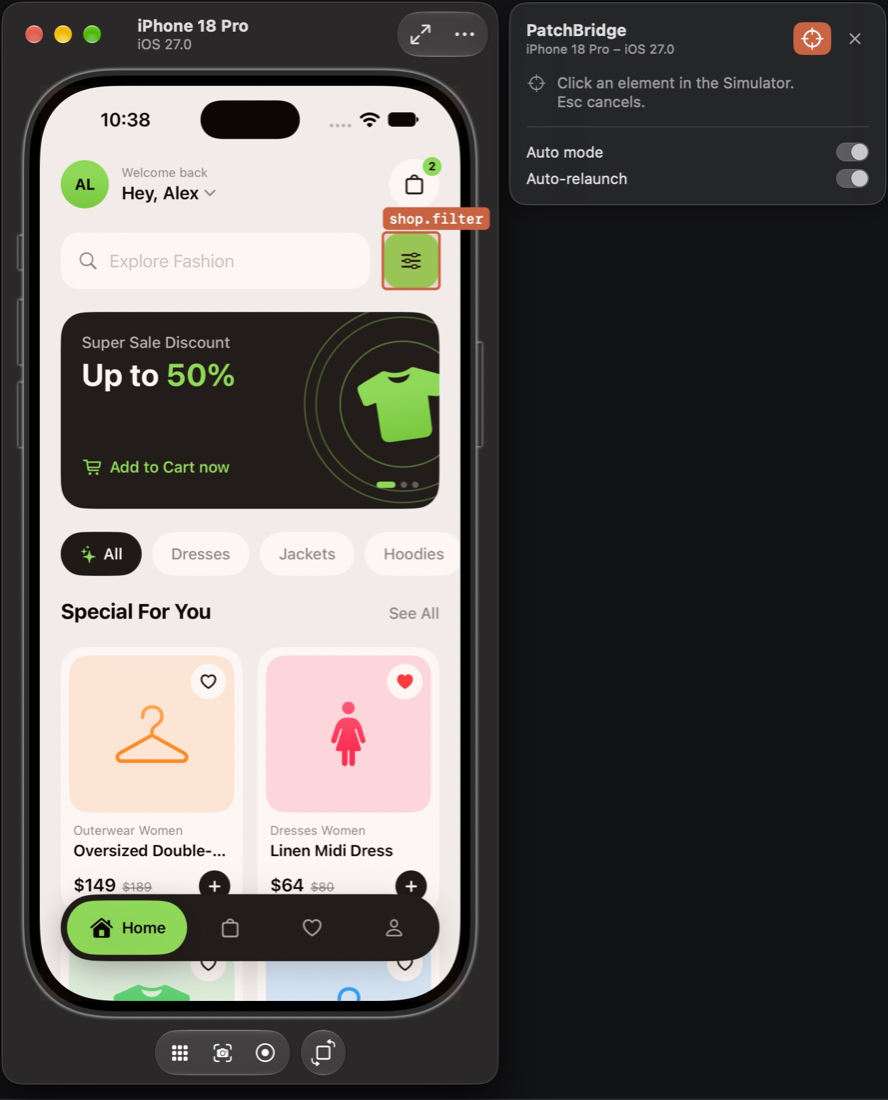
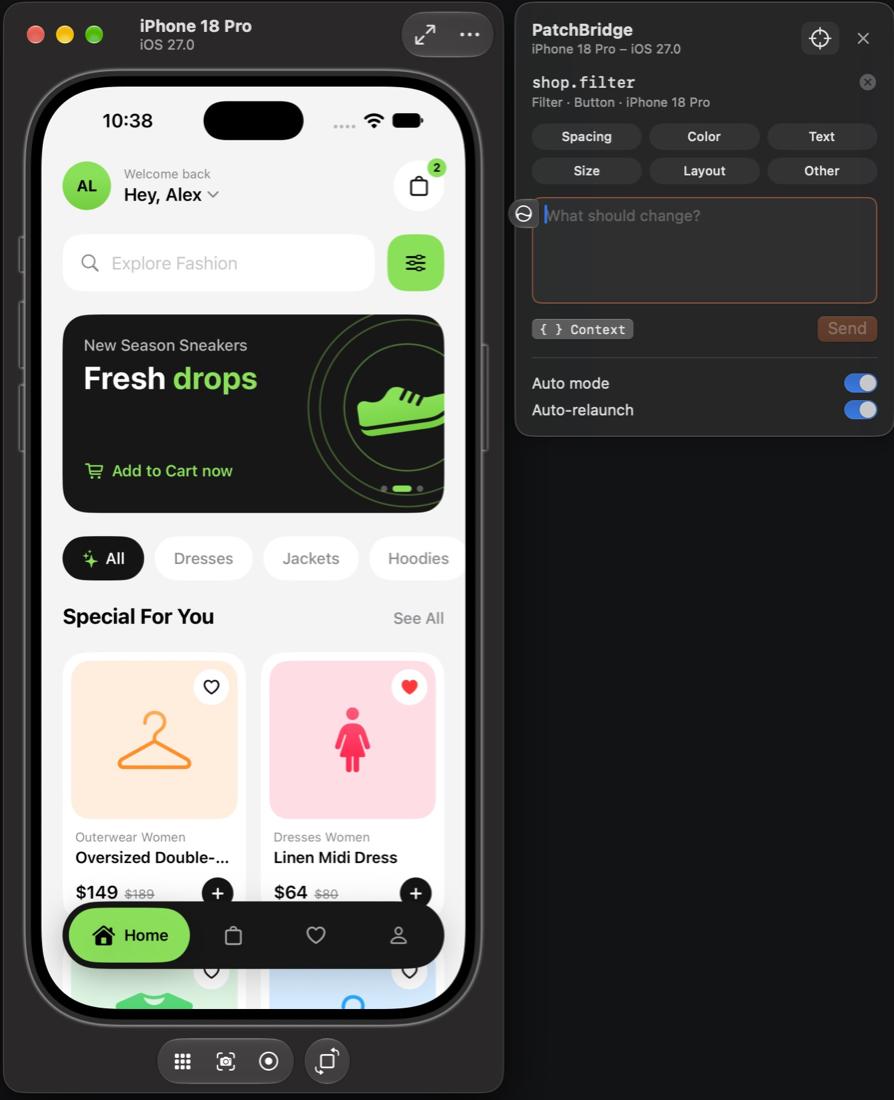
The Simulator panel is a floating panel in Pointfix.app that attaches to the iOS Simulator window. Hover to highlight elements, as in Accessibility Inspector, click one, describe the change and send it, without a long-press in the app.
How it works
The panel reads the Simulator window’s accessibility elements, which mirror the running iOS app, and takes the screenshot with xcrun simctl io … screenshot. Your app doesn’t need PointfixKit for this. The report goes to the bridge on this Mac as an iOS report from that simulator, so auto-relaunch can rebuild and relaunch it.
The Proposed screenshot and launch tracking come from PointfixKit. Without the SDK in the app, compare the change in the running simulator.
Open the panel
- Choose View → Simulator Panel (⇧ ⌘ P), or use the Simulator Panel toggle in the toolbar. It is on by default.
- The panel appears while a Simulator device window is on screen, attached to its right edge, or its left edge when there is no room. It also follows Xcode’s Device Hub window when that hosts the simulator. It hides when the window is minimized, hidden or on another Space.
- The ✕ button in the panel turns it off; turn it on again from the View menu.
Download the Mac app from pointfix.dev/download. The panel talks to the bridge on 127.0.0.1 at the port the Mac app connects to. Start the bridge first.
Accessibility permission
Targeting needs Accessibility access, the same permission Accessibility Inspector uses. While it isn’t granted, the panel shows Allow Accessibility access; Open System Settings takes you to Privacy & Security → Accessibility, where you turn on Pointfix. Without it, the panel still follows the Simulator window by position, but can’t target elements or read the device name.
macOS ties the permission to the app’s signature, so it carries over when you update Pointfix. If the panel keeps asking after you granted access, see Troubleshooting.
Target an element
- Press the target button (crosshair) in the panel. The Simulator comes to the front and the device screen gets a faint tint.
- Move the pointer: the element under it is outlined, with its identifier (in monospace) or its label or role.
- Click to select it. Clicks outside the device screen are ignored.
- Esc or a right-click cancels. Esc works even while another app has keyboard focus.
After you click, the panel takes a screenshot of the booted simulator whose name (and iOS version, when several share a name) matches the window title.
Compose and send
- The panel shows the element’s identifier or label, with its role and device. Discard (the ✕ beside it) clears the selection.
- Category chips (Spacing, Color, Text, Size, Layout, Other) are optional.
- Type in What should change?, then press Send or ⌘ ↩.
- { } Context previews the Context Packet your agent receives.
The report’s screen name is the Simulator window title, such as “iPhone 18 Pro – iOS 27.0”.
Progress and review actions
The panel follows the newest report that is running or waiting for review, from any reporter, not only the ones it sent. It shows the status, your request, the elapsed time and the Sent, Agent, Relaunch and Review steps. It checks every 1.5 seconds while a report is in progress and every 5 seconds otherwise.
In review, the panel offers:
- Commit fix: commit only the files the agent changed.
- I’ll commit: mark it reviewed and commit yourself.
- Revert: put every file the agent changed back. It asks again (Undo files?) before acting.
- Open in dashboard: bring the Mac app’s window forward with the report selected.
These work like the dashboard actions in The review workflow. Dismiss the progress with its ✕.
Auto mode and Auto-relaunch
The Auto mode and Auto-relaunch switches change the same settings as Preferences. When the bridge doesn’t answer, the panel shows Bridge offline. Start it with pointfix start. The switches are disabled while the panel can’t read the settings from the bridge.
Limitations
- iOS simulators only.
- The device’s pixel scale is guessed from its name and screenshot size (iPads and iPhones up to 828 pixels wide as 2×, others as 3×), because
simctldoesn’t report it. On an unusual device the recorded frame and touch point can be off. - If several booted simulators share a name and the panel can’t tell them apart, it reports “Can’t tell which booted simulator is …”. Shut down the extra ones.
- Elements are only as specific as the Simulator’s accessibility tree. Give important controls an
accessibilityIdentifier.